Headaches of Migrating CMSes
Turns out, changing CMS is not as easy as I thought it would be. Maybe also because of my weird configuration. So, here is my struggles switching from WordPress to Ghost.
The Original Problem
Initially, I ran WordPress in a Docker container on Windows Server. At the mid of 2025, I migrated my server to TrueNAS, but I could never get the old WordPress container running again. Back then, even the smartest AI fail to guide me to diagnose what is really the issue, until today, when i remember that i used to write for my notes in here i finally got the courage to try again using the latest of AI models. How did it go? Well....
At first, the initial issue was i can never seem to create a new a TrueNAS App that pointed to the docker directory where i have the original MySQL DB and WordPress files saved. I literally tried every UID/GID combination possible since at first i thought it was a permission issue (like when TrueNAS can't open the folder because the directory was owned by other user) and it turned out that I was partly correct.
I decided to use GPT5.6 Sol High to help me diagnose this.
Recovering The Database
At first, Sol suggested to dump the MySQL DB into a .sql file. Then, it told me to create a "rescue" docker container with MySQL 8 image to read the database. This is where the first problem started. The container can't seem to start. Since the error is vague, out of curiosity i ran "ls -l" on the directory just in case i don't have proper permission to the folders and turns out, i was right.
Sol then told me to use the TrueNAS Shell, with "sudo -i" so it use root user instead of TrueNAS local admin user. After using "cd" and "pwd" and "ls -lah" Now i see who's the real owner of these directories. The owner is "root (0)" and "Administrator (3000)". So naturally, i tried using both ACL user 0, group 0 and user 3000, group 3000 on TrueNAS Apps again, and it still didn't work.
Let's give Sol this information, and see whats the response.
Creating a Safe Recovery
Sol then told me to create a backup folder of the original folder by using mkdir,
mkdir -p /mnt/Files2/wordpress-db-recovery
Then use rsync to copy the raw data from the old directory to new directory.
rsync -aHAX --numeric-ids --info=progress2 /mnt/Files2/old-wordpress-directory/ /mnt/Files2/wordpress-db-recovery/
Verify the directory copied successfully:
ls -lah /mnt/Files2/wordpress-db-recovery
Then after confirming it succeeded, continue to change the folder ownership (to a GUID of 999) using:
chown -R 999:999 /mnt/Files2/wordpress-db-recovery
And set the permissions to chmod 750 which gives the owner read, write, and execute permissions. and chmod 640 that gives the owner read and modify permissions.
find /mnt/Files2/wordpress-db-recovery -type d -exec chmod 750 {} +
find /mnt/Files2/wordpress-db-recovery -type f -exec chmod 640 {} +
Why {} and +?
{} is replaced with the paths found by find.
'+' passes many paths to one chmod invocation, making it more efficient than running chmod separately for every item.
Lets continue
Then we verify if permissions changed with
ls -lna /mnt/Files2/wordpress-db-recovery
After all done, i asked Sol to make a one-liner code to run on TrueNAS Shell, just for verification,
stty -echo; printf "Database password: "; read P; stty echo; printf "\n"; docker rm -f wordpress-mysql-recovery >/dev/null 2>&1 || true; docker run -d --name wordpress-mysql-recovery --restart=no -v "/mnt/Files2/files2/wp-backup:/var/lib/mysql" mysql:8.0 --skip-log-bin >/dev/null && for i in $(seq 1 90); do if docker exec -e MYSQL_PWD="$P" wordpress-mysql-recovery mysqladmin ping -udarelism --silent >/dev/null 2>&1; then docker exec -e MYSQL_PWD="$P" wordpress-mysql-recovery mysqldump -udarelism --single-transaction --quick --routines --events --triggers --hex-blob --set-gtid-purged=OFF --column-statistics=0 --no-tablespaces dws-notes-db > "/mnt/Files2/files2/dws-notes-db-recovered.sql"; R=$?; unset P; [ "$R" -eq 0 ] && ls -lh "/mnt/Files2/files2/dws-notes-db-recovered.sql"; exit "$R"; fi; docker inspect -f '{{.State.Running}}' wordpress-mysql-recovery 2>/dev/null | grep -qx true || { docker logs wordpress-mysql-recovery; unset P; exit 1; }; sleep 2; done; echo "MySQL did not become ready"; docker logs wordpress-mysql-recovery; unset P; exit 1
But then it returned this:
The Recovery Container Failed
...
2026-08-05T19:04:20.776673Z 1 [System] [MY-013576] [InnoDB] InnoDB initialization has started.
2026-08-05T19:04:21.985762Z 1 [System] [MY-013577] [InnoDB] InnoDB initialization has ended.
2026-08-05T19:04:22.006367Z 1 [ERROR] [MY-011087] [Server] Different lower_case_table_names settings for server ('0') and data dictionary ('2').
2026-08-05T19:04:22.006593Z 0 [ERROR] [MY-010020] [Server] Data Dictionary initialization failed.
2026-08-05T19:04:22.006615Z 0 [ERROR] [MY-010119] [Server] Aborting
2026-08-05T19:04:22.726090Z 0 [System] [MY-010910] [Server] /usr/sbin/mysqld: Shutdown complete (mysqld 8.0.46) MySQL Community Server - GPL.
The MySQL Database basically crashed because the table name was initialized with
lower_case_table_names=2
Why the Database Couldn’t Start on Linux
Which is not supported on TrueNAS and Linux, since i originally made it on Windows. Sol says "You must temporarily start it using native MySQL 8 on a case-insensitive Windows or macOS filesystem..."
OK. Now i think we need to use Mac for this, so lets copy the MySQL DB folder to the local document so we can work with it easier.
Moving the Recovery to MacOS
So i went digging for MySQL version 8 on my Mac. Once i found, downloaded and extracted the compressed tar, and return the directory back to Sol, it gave me this command to run at my Terminal.
Starting MySQL from the Old Data Directory
BIN="/Users/darelisme/Downloads/mysql-8.0.46-macos15-arm64/bin"; BASE="/Users/darelisme/Downloads/mysql-8.0.46-macos15-arm64"; DATA="/Users/darelisme/Documents/wordpress/db"; RUN="$HOME/mysql-wp-recovery-runtime"; OUT="$HOME/Desktop/dws-notes-db-recovered.sql"; PASS='(mydatabasepass)'; sudo chown -R "$(id -u):$(id -g)" "$DATA" && chmod -R u+rwX "$DATA" && { xattr -dr com.apple.quarantine "$BASE" 2>/dev/null || true; } && mkdir -p "$RUN" && rm -f "$RUN/mysql.sock" "$RUN/mysql.pid" "$RUN/mysql.log" "$OUT.partial" && "$BIN/mysqld" --no-defaults --basedir="$BASE" --datadir="$DATA" --socket="$RUN/mysql.sock" --pid-file="$RUN/mysql.pid" --log-error="$RUN/mysql.log" --port=3307 --skip-networking --skip-log-bin --persisted-globals-load=OFF --lower-case-table-names=2 & MPID=$!; trap 'kill "$MPID" 2>/dev/null || true' EXIT; READY=0; for i in {1..120}; do MYSQL_PWD="$PASS" "$BIN/mysql" --protocol=SOCKET --socket="$RUN/mysql.sock" -udarelism -Nse 'SELECT 1' >/dev/null 2>&1 && { READY=1; break; }; kill -0 "$MPID" 2>/dev/null || { echo "MySQL failed to start:"; cat "$RUN/mysql.log"; exit 1; }; sleep 1; done; [ "$READY" = 1 ] || { echo "MySQL did not become ready:"; cat "$RUN/mysql.log"; exit 1; }; MYSQL_PWD="$PASS" "$BIN/mysqldump" --protocol=SOCKET --socket="$RUN/mysql.sock" -u(mydbusername) --single-transaction --quick --skip-lock-tables --hex-blob --routines --events --triggers --set-gtid-purged=OFF --column-statistics=0 --no-tablespaces --databases "dws-notes-db" > "$OUT.partial" && mv "$OUT.partial" "$OUT"; RC=$?; kill "$MPID" 2>/dev/null || true; wait "$MPID" 2>/dev/null || true; trap - EXIT; if [ "$RC" -eq 0 ]; then echo "DATABASE RECOVERED:"; ls -lh "$OUT"; else echo "Dump failed:"; tail -100 "$RUN/mysql.log"; rm -f "$OUT.partial"; fi; exit "$RC"
And it works! It created a .sql file on my desktop. Sol then told me to copy the .sql file back to TrueNAS, and run that .sql file to a Docker container in this one liner
docker rm -f dws-notes-mysql-restored 2>/dev/null || true; docker network create wordpress-restored-net 2>/dev/null || true; docker volume create dws-notes-mysql-restored-data >/dev/null; docker run -d --name dws-notes-mysql-restored --restart=unless-stopped --network wordpress-restored-net -e MYSQL_ROOT_PASSWORD='(mydbpassword)' -e MYSQL_DATABASE='dws-notes-db' -e MYSQL_USER='(mydbuser)' -e MYSQL_PASSWORD='(mydbpassword)' -v dws-notes-mysql-restored-data:/var/lib/mysql -v /mnt/Files2/files2/dws-notes-db-recovered.sql:/docker-entrypoint-initdb.d/01-restore.sql:ro mysql:8.0
And watch the docker logs with "docker logs -f dws-notes-mysql-restored" and it says the gold line
ready for connections
Whaaa... It works!
Restoring WordPress on TrueNAS
We start by Installing WordPress via the "Install via YAML" option on TrueNAS Apps
services:
wordpress:
image: wordpress:7.0.2
restart: unless-stopped
ports:
  - "30040:80"

environment:
  WORDPRESS_DB_HOST: dws-notes-mysql-restored:3306
  WORDPRESS_DB_NAME: dws-notes-db
  WORDPRESS_DB_USER: darelism
  WORDPRESS_DB_PASSWORD: NasiGorengTelorMataSapiDua

volumes:
  - /mnt/Files2/files2/wordpress-restored-html:/var/www/html

networks:
  - wordpress-restored-net
networks:
wordpress-restored-net:
external: true
Then i open the /wp-admin page and... here comes another drama.
I seemingly forgot the admin password, and password reset (conveniently) didn't work. So Sol generated a script then to reset my password, then it was good to go. I tried to explore around to make sure all the data exist and...
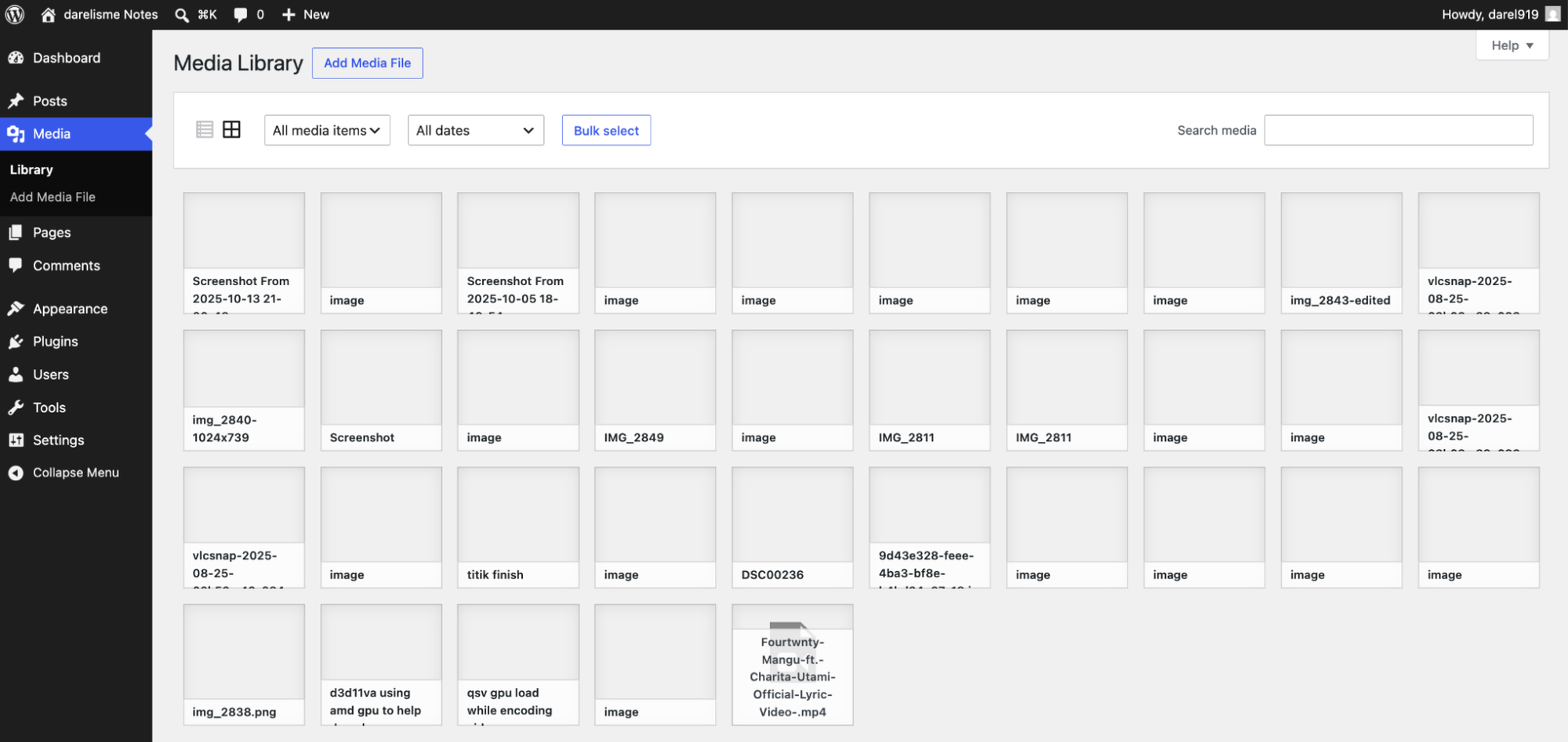
Where is all the media?
Restoring the Missing Media
Turns out i need to restore the /wp-content/ directory because it restored it to a different folder somehow.
OLD_WP=$(find "/mnt/Files2/old-wordpress-directory" -type d -path '*/wp-content' -print -quit); NEW_WP="/mnt/Files2/files2/wordpress-restored-html"; [ -n "$OLD_WP" ] || { echo "ERROR: Old wp-content folder not found"; exit 1; }; echo "Copying from: $OLD_WP"; rsync -aH --info=progress2 "$OLD_WP/" "$NEW_WP/wp-content/" && chown -R 33:33 "$NEW_WP/wp-content" && find "$NEW_WP/wp-content" -type d -exec chmod 755 {} + && find "$NEW_WP/wp-content" -type f -exec chmod 644 {} + && WPC=$(docker ps --filter publish=30040 --format '{{.Names}}' | head -n1) && docker restart "$WPC"
And there it is. All media now being displayed on the /wp-admin/upload.php page which is the Media overview page.
I go to Export Site Data and receive my .xml WordPress Site backup complete with all the media.
Migrating from WordPress to Ghost
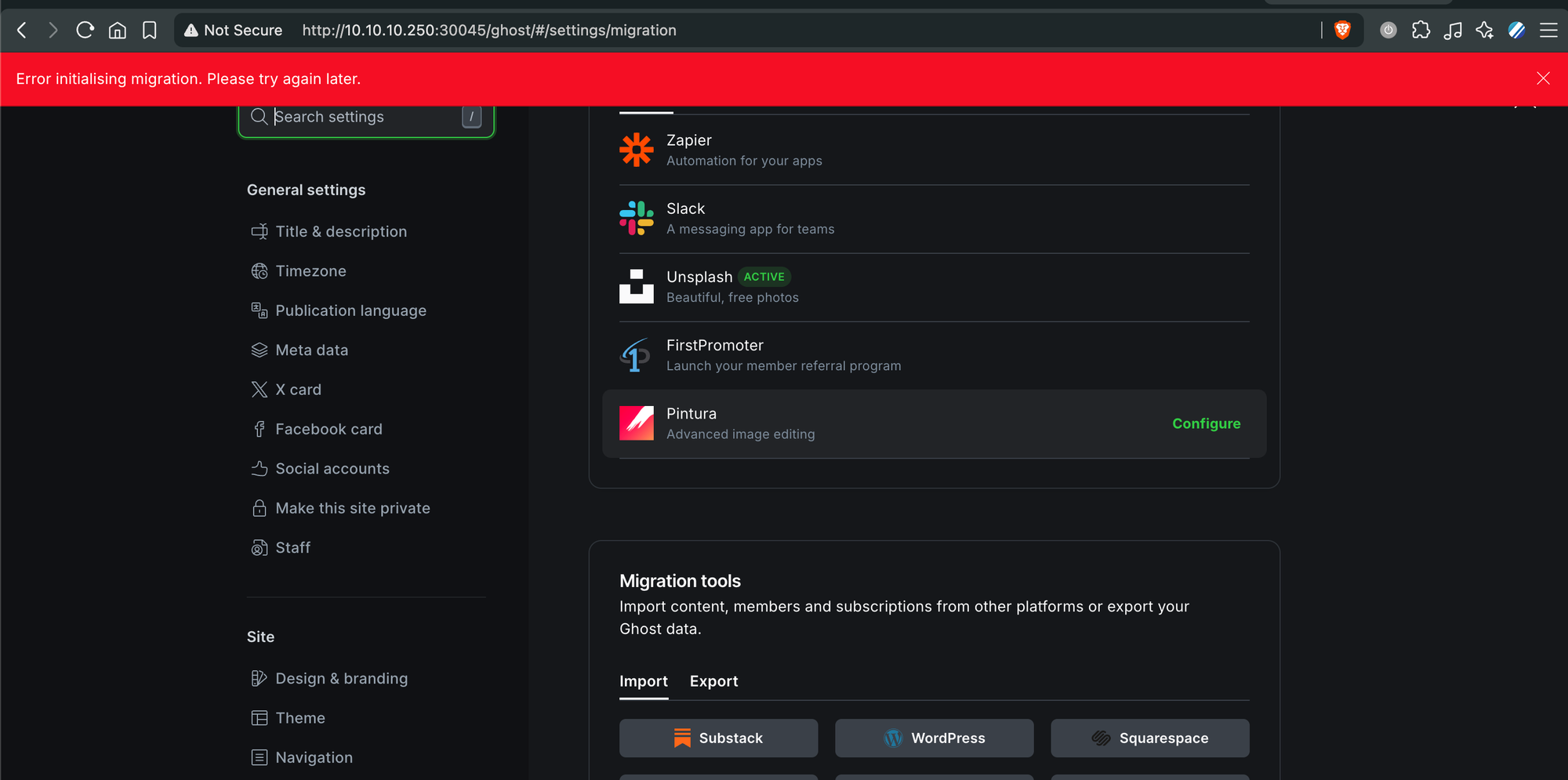
And.... here comes another issue. Ghost's WordPress importer did not work, at all, for some reason i don't know what.
Converting the WordPress Export
I asked Sol regarding this, and it gave me a command that I had to run (which basically find my .xml file on the Downloads folder, use the @tryghost/migrate to convert it) just to get my exported WordPress .xml file to a universal Ghost .zip file
XML="$(find "$HOME/Downloads" "$HOME/Desktop" -maxdepth 1 -type f -name '*.xml' -print0 2>/dev/null | xargs -0 ls -t 2>/dev/null | head -n1)"; [ -n "$XML" ] || { echo "ERROR: No XML file found in Downloads or Desktop"; exit 1; }; OUT="$HOME/Desktop/ghost-wordpress-import"; mkdir -p "$OUT"; cd "$OUT" && echo "Using: $XML" && npx -y @tryghost/migrate wp-xml --pathToFile "$XML" --scrape all --zip --verbose
And do you know what? It did it. It migrated all of 'em to a .zip file.
info Migrating from export at /Users/darelisme/Downloads/darelismenotes.WordPress.2026-08-05.xml
[STARTED] Initializing
[OUTPUT] Workspace initialized at /tmp/mg/389b30f87c2918c24e71a848e8be6217-wordpress-darelismenotes-wordpress-2026-08-05
[COMPLETED] Initializing
[STARTED] Read xml file
(node:69436) ExperimentalWarning: SQLite is an experimental feature and might change at any time
(Use node --trace-warnings ... to show where the warning was created)
[COMPLETED] Read xml file
[STARTED] Fetch existing Ghost users
[SKIPPED] Fetch existing Ghost users
[STARTED] Fetch missing data via WebScraper
[STARTED] http://10.10.10.10:30040/homepage/
[COMPLETED] http://10.10.10.10:30040/homepage/
[STARTED] http://10.10.10.10:30040/?p=100
[SKIPPED] http://10.10.10.10:30040/?p=100
[STARTED] http://10.10.10.10:30040/?p=102
[SKIPPED] http://10.10.10.10:30040/?p=102
[STARTED] http://10.10.10.10:30040/?p=222
[SKIPPED] http://10.10.10.10:30040/?p=222
[STARTED] http://10.10.10.10:30040/?p=238
[SKIPPED] http://10.10.10.10:30040/?p=238
[STARTED] http://10.10.10.10:30040/hello-world/
[SKIPPED] http://10.10.10.10:30040/hello-world/
[STARTED] http://10.10.10.10:30040/deinterlace-video-interlaced-anda-dengan-qtgmc-avisynth/
[COMPLETED] http://10.10.10.10:30040/deinterlace-video-interlaced-anda-dengan-qtgmc-avisynth/
[STARTED] http://10.10.10.10:30040/rich-media-test-fourtwenty-mangu/
[COMPLETED] http://10.10.10.10:30040/rich-media-test-fourtwenty-mangu/
[STARTED] http://10.10.10.10:30040/testing-ollamas-response-time-on-my-home-server/
[COMPLETED] http://10.10.10.10:30040/testing-ollamas-response-time-on-my-home-server/
...
[COMPLETED] Convert HTML -> Lexical
[STARTED] Write Ghost import JSON File
[COMPLETED] Write Ghost import JSON File
[STARTED] Write Ghost import zip
[OUTPUT] Successfully written zip to /Users/darelisme/Desktop/ghost-wordpress-import/gh-wordpress-darelismenotes-wordpress-2026-08-05-1785964085387.zip in 432ms
[COMPLETED] Write Ghost import zip
info Done
Verifying the Migration
After this, trying to use the Ghost's Universal Import worked like a breeze, and straight to the point. Very quick indeed. After doing a quick check of everything and confirms everything is there, lets clean all the mess we created.
Cleaning Up the Old Containers
Now we go back to TrueNAS Shell, and delete both WordPress and MySQL (since we do it in the Shell not in GUI, remember?)
We run "docker ps" then when we know the id of the container, run "docker rm (container id 1) (container id 2)". After that we ran "docker image prune" to make sure no leftover images.
And voila, we are done!.
Final Thoughts
What I thought would be a simple CMS migration turned into a full database recovery project. The biggest problem was not WordPress or Ghost itself, but the fact that my original MySQL database had been created on Windows and could not be started normally on Linux because of its lower_case_table_names setting.
Recovering it required moving between TrueNAS, Docker, macOS, MySQL, WordPress, and finally Ghost. Every time one problem was solved, another one appeared: incorrect permissions, an incompatible database, a forgotten admin password, missing media files, and a WordPress export that Ghost refused to import directly.
Still, it worked in the end. I recovered the database, restored the original WordPress site, brought back all the media, exported everything, converted the export with Ghost’s migration tool, and successfully imported it into Ghost.
The biggest lesson for me is to never assume that having the raw database and application files automatically means they will be easy to restore. Platform differences, filesystem behavior, ownership, permissions, and database configuration can all matter years later. Keeping proper SQL dumps and complete application backups would have made this process much easier.
AI also helped a lot, but it was not a one-click solution. I still had to inspect errors, question assumptions, verify every command, and provide the missing context. The successful recovery came from combining AI guidance with actual troubleshooting rather than blindly running whatever it generated.
After all that effort, my old notes are finally accessible again, and the site is now running on Ghost.
Thank you for reading, and see you on the next one.